
Add Stop
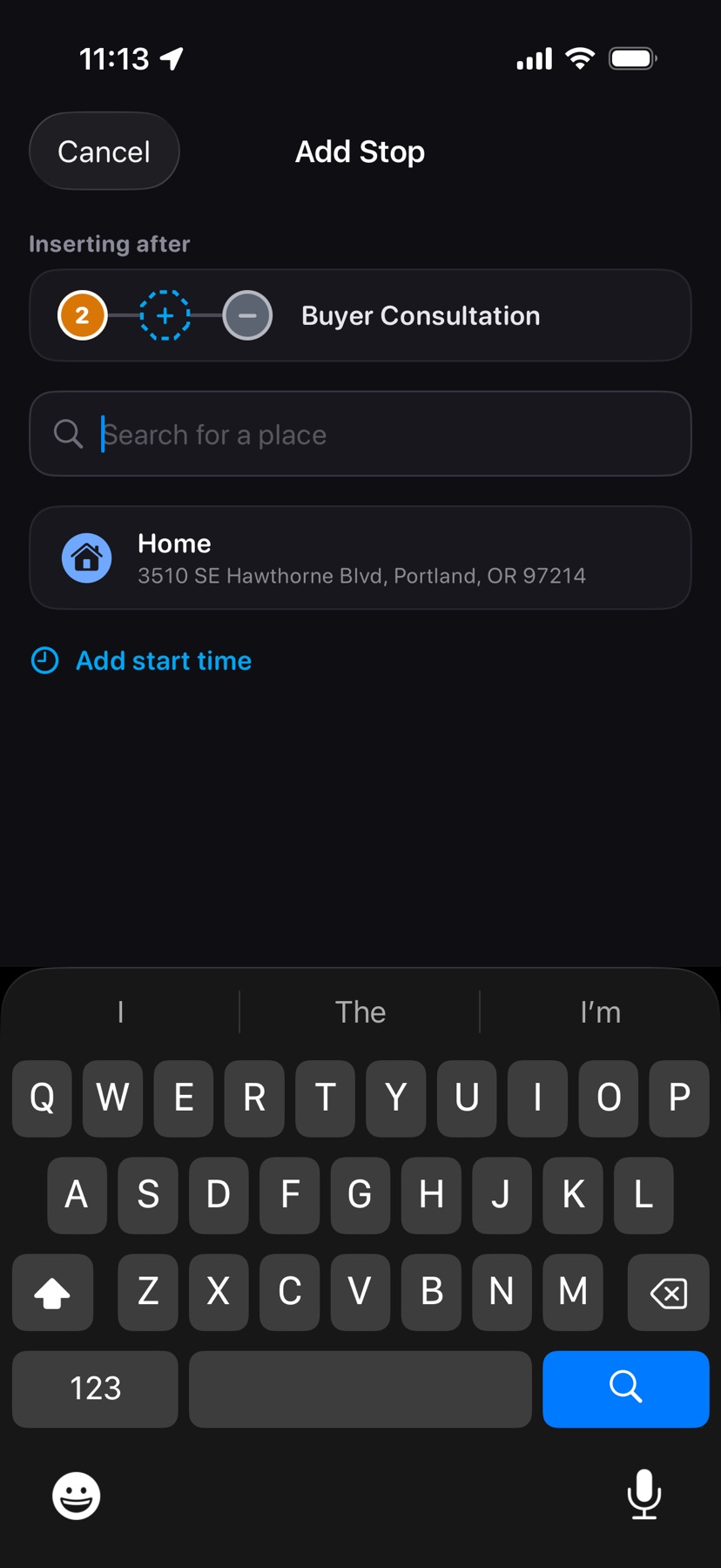
Find a place and add it to the day as a stop of your own. Where it lands depends on which button opened the search.
 1
1
- 1
- Inserting after
- Names the stop the new one follows. It appears when you open the search from the octagon button on the map, which inserts right after the stop in the peek card.
 2
3
4
5
2
3
4
5
- 2
- Search for a place
- Type a business name or an address. Results appear after two letters.
- 3
- Home
- Adds your primary address as a stop named Home. It appears once you set Settings → Mileage → Primary address.
- 4
- Add start time
- Optional. Opens a Starts at picker set to the next five minutes; Clear removes it. The time shows on the stop's card; the stop keeps its place in the order.
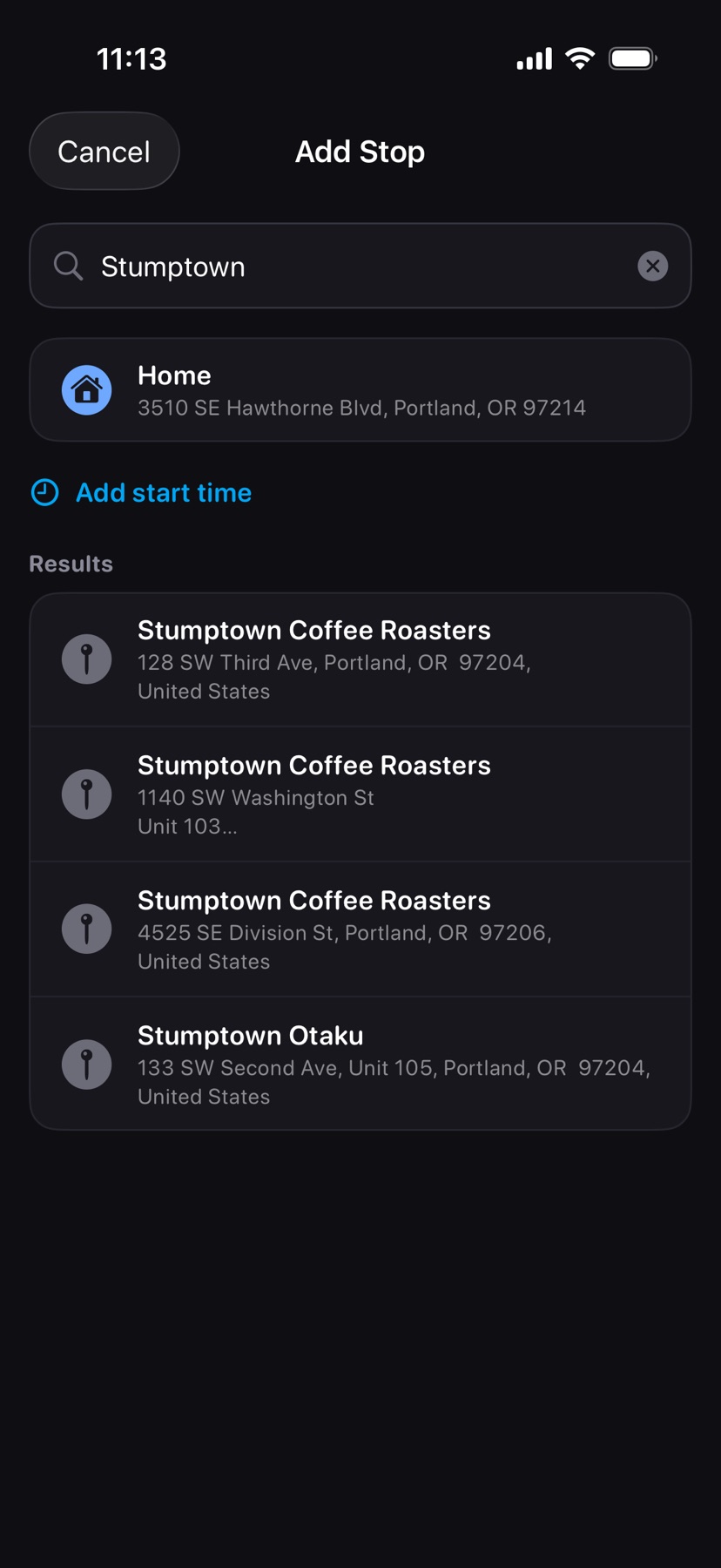
- 5
- Results
- Tap a place to add it. The search closes and the map zooms to the new stop, a numbered octagon pin.
Add Stop at the top of the sheet adds to the end of the day. Add Stop between two stops inserts there. On a day with no stops, Add Custom Stop opens the same search. Press and hold an empty place on the map to drop a pin, then tap Add Stop on its address: the search opens with that place as the one result, inserting after the stop in the peek card. See also Add a stop along the way.