
Add a stop along the way
A key pickup or a coffee run isn't on your calendar, but it still belongs on today's route. Add it in HopStop and your calendar stays as it is.
- 1
Choose where it goes
Tap Add Stop between two stops in the list to put it right there. Add Stop at the top of the sheet adds it at the end of the day. With the sheet lowered, the octagon button on the map adds it after the stop shown in the card.
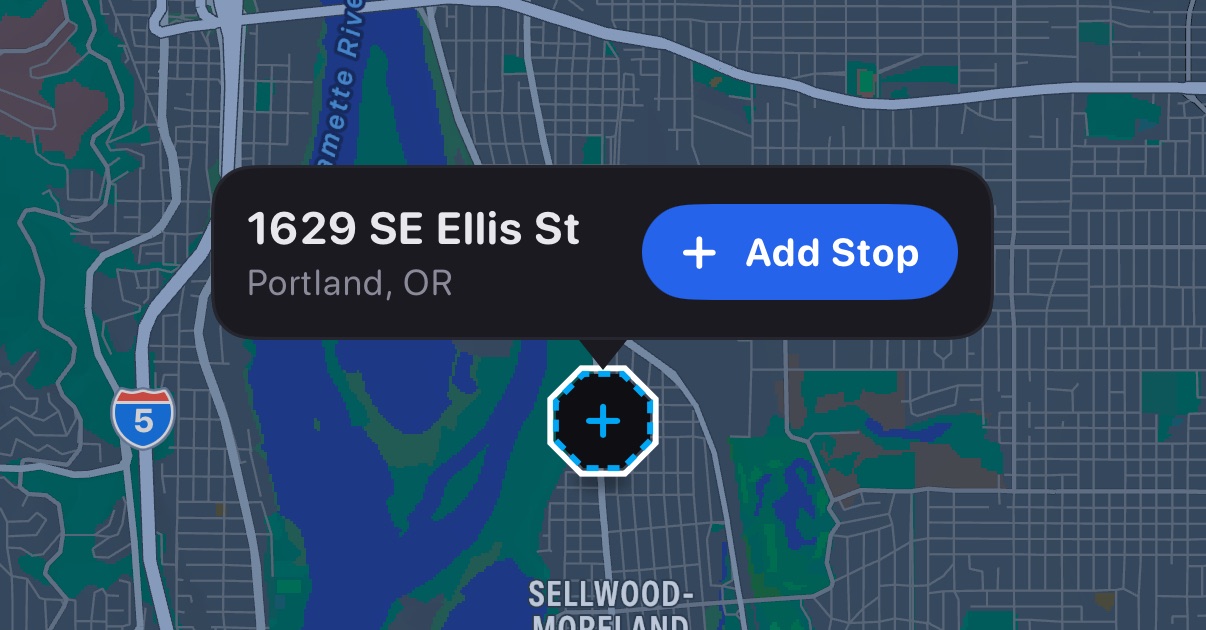
To add a spot that has no listing, press and hold an empty place on the map. A pin drops with the address and Add Stop, which inserts it after the stop shown in the card. Where no address is found, it joins as Dropped pin.
- 2
Add a time, if it has one
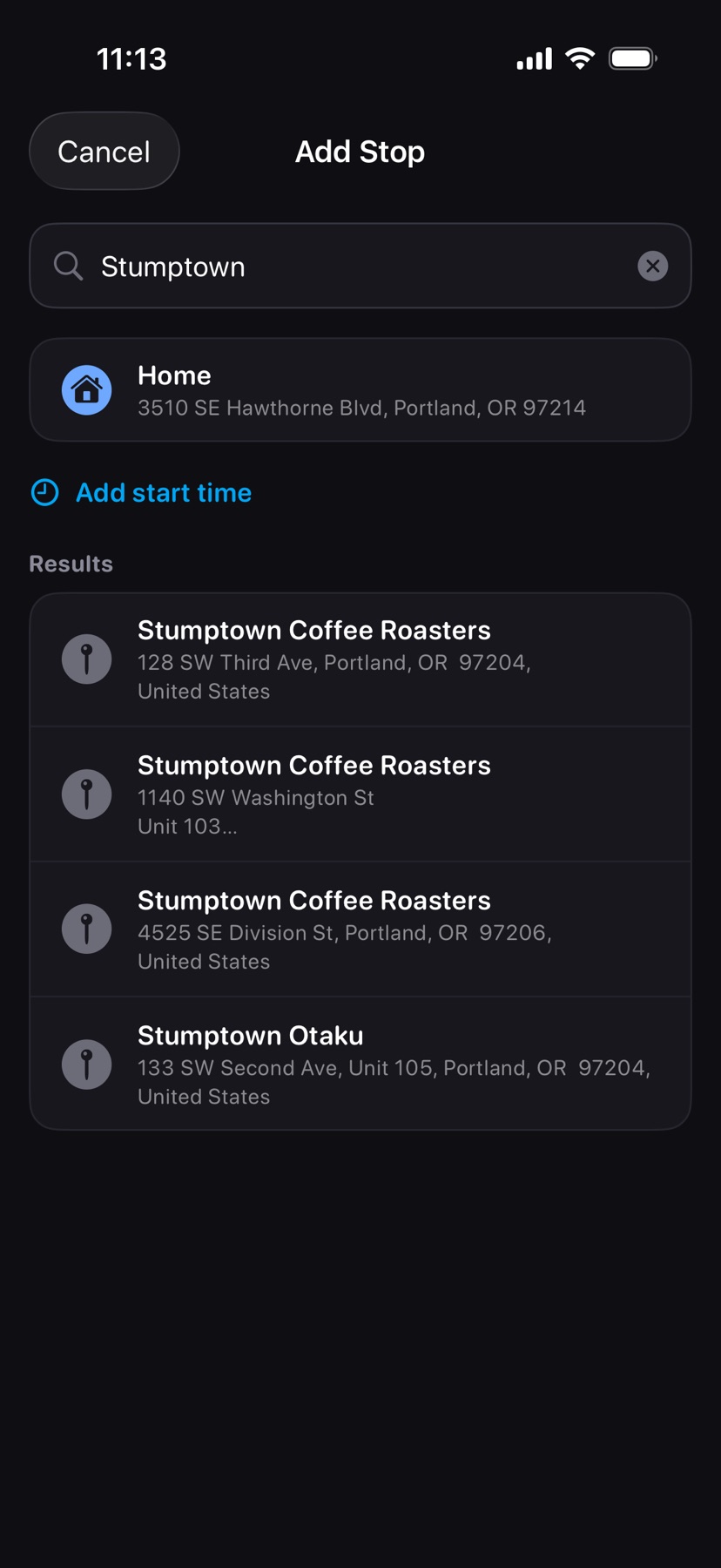
Tap Add start time and set the time before you pick the place. A stop with a time gets a departure alert like your appointments; a stop without one doesn't.
- 3
Pick the place
Type a name or address and tap the result. The stop joins your route as a blue octagon pin, numbered with the rest, and drive times recalculate.
If you've set a Primary address in Settings → Mileage, Home sits under the search field for one tap.
Change or remove it
A stop without a time shows an amber Set Time button; tap it to add one. To rename the stop or change its time, swipe right and tap Edit. In Edit Stop, turn off Start time to clear the time: the stop keeps its place in the route and gets no departure alert. Swipe left and tap the trash icon to remove the stop.
Shown in HopStop 1.0.69 or later.