
Change a scheduled event
Your weekly meeting moved across town, just this once. Handle last-minute changes in HopStop without changing your calendar.
- 1
Find the meeting in your list
Tap the card or drag the sheet up to half height. Today's stops are listed in route order.
- 2
Swipe right and tap Edit
Swipe right on the meeting to reveal Edit and Share, then tap Edit. The Edit Event screen opens.
- 3
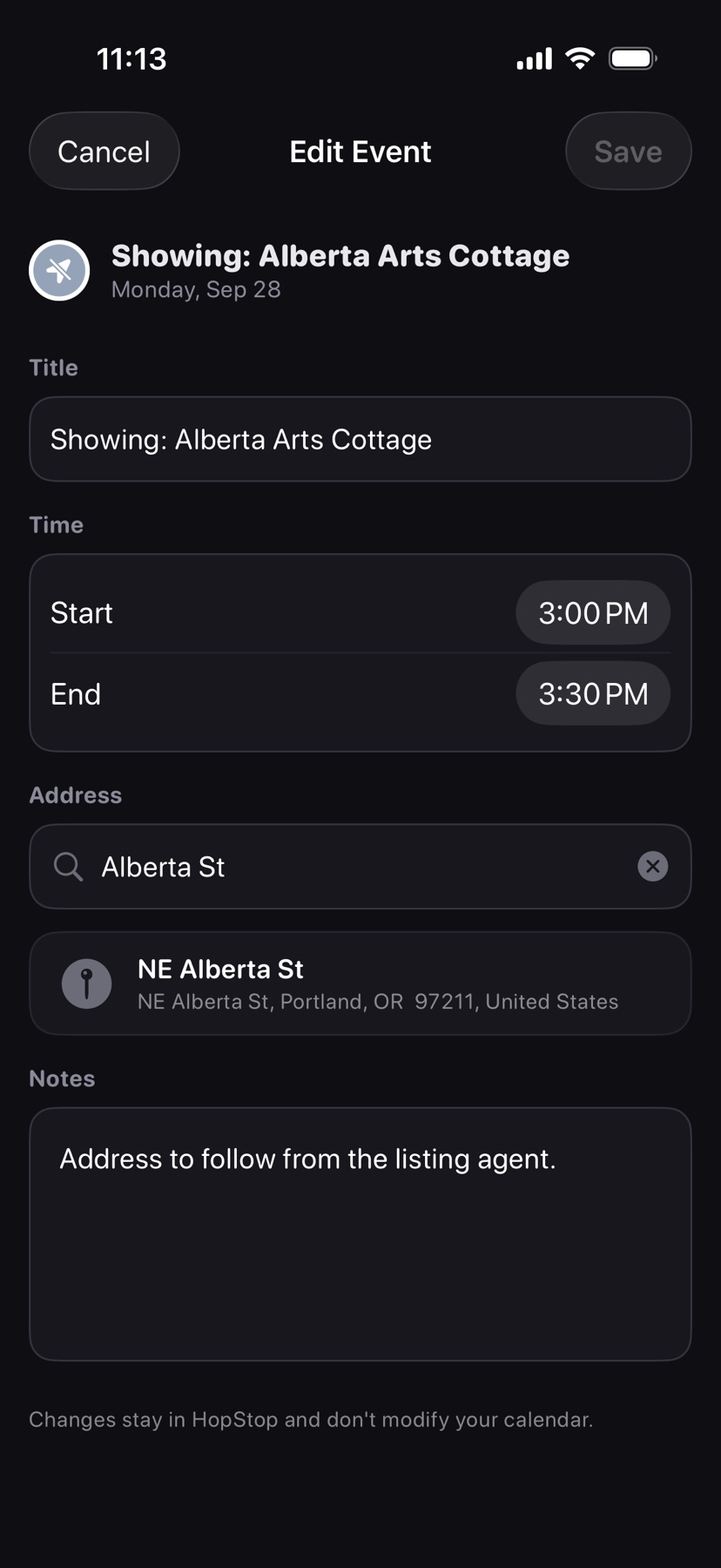
Change what moved
Search for the new place under Address. You can also change the Title, the Start and End times, or add Notes.
Changes stay in HopStop and don't modify your calendar. They apply to this one occurrence, so next week's meeting is back in its usual place.
- 4
Tap Save
The pin moves and drive times recalculate. Save stays greyed out until something changes, or while the end time is before the start time.
Undo it later, if you need to
Open Edit Event again and clear any field: Clear Address Override, Clear Title Override, or Use Source Times. To undo every change on the day at once, tap Clear and choose Reset to calendar.
Shown in HopStop 1.0.69 or later.