
Departure alerts
HopStop can help you leave on time for each stop. It adds a buffer you choose to the live drive time, so you can stop checking the clock between appointments.
- 1
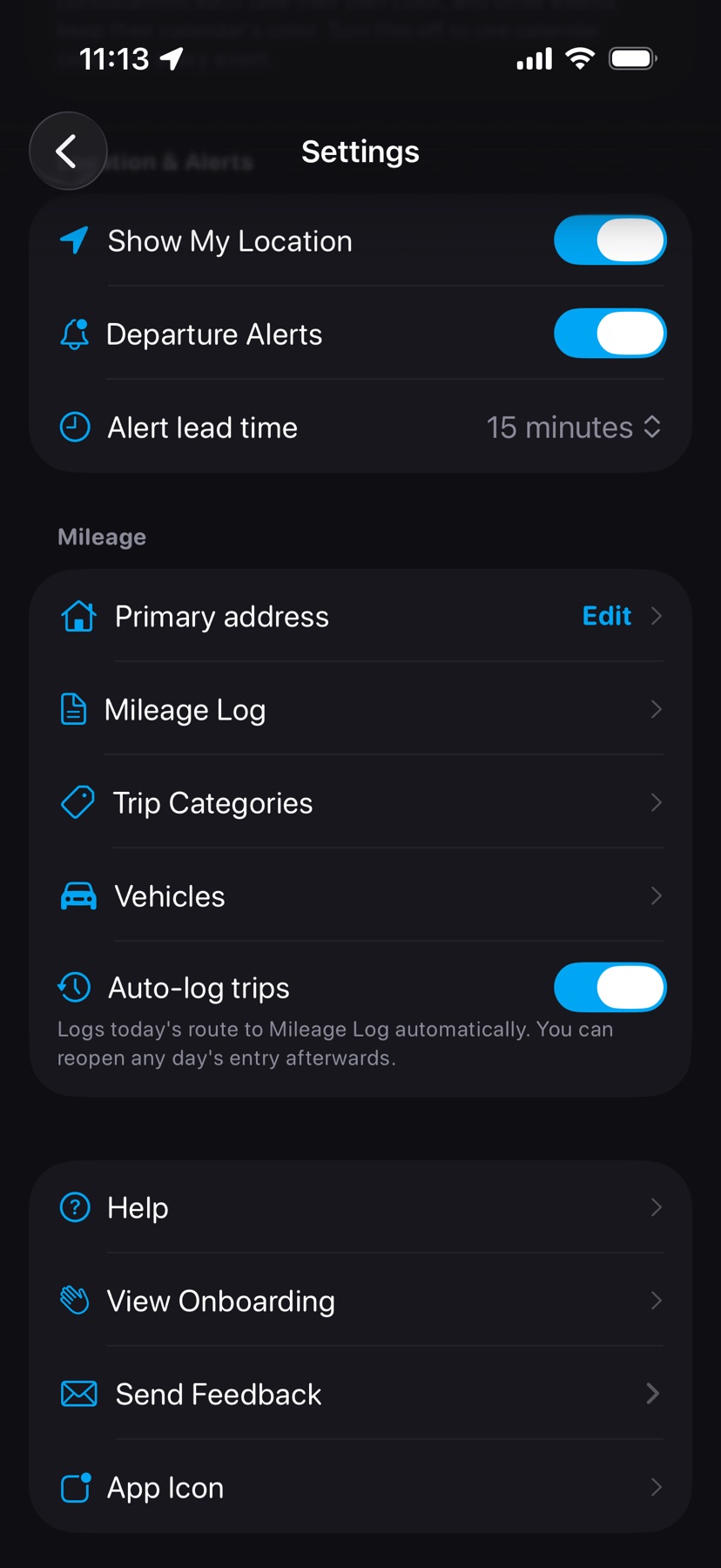
Turn on departure alerts
Tap the gear icon at the top right of the map. Under Location & Alerts, turn on Departure Alerts. Allow notifications and location when your iPhone asks; HopStop needs your location to time the drive to your first stop.
- 2
Choose your buffer
Tap Alert lead time and pick 5, 10, 15, 20, or 30 minutes. The default is 15. The alert arrives that long before you need to set off.
- 3
Give each stop a time
Alerts follow stops that have a start time and aren't excluded. All-day events and added stops without a time get no alert. Tap the amber Set Time button on a stop to give it one.
Go when it tells you
The alert leads with when to leave, then names the stop, the drive time, and the street address. Press and hold it, then tap Navigate to start directions in your chosen maps app, or tap Remind in 5 min to get the alert again five minutes later. A reminder that arrives at or after your leave time reads Leave now. Tap the alert itself to open HopStop with that stop selected.
If HopStop can't find a route, it assumes a 30-minute drive so the alert still comes early, and says so. Alerts cover today only. If one doesn't arrive, see My departure alert didn't arrive.
Shown in HopStop 1.0.69 or later.