
Mileage Log
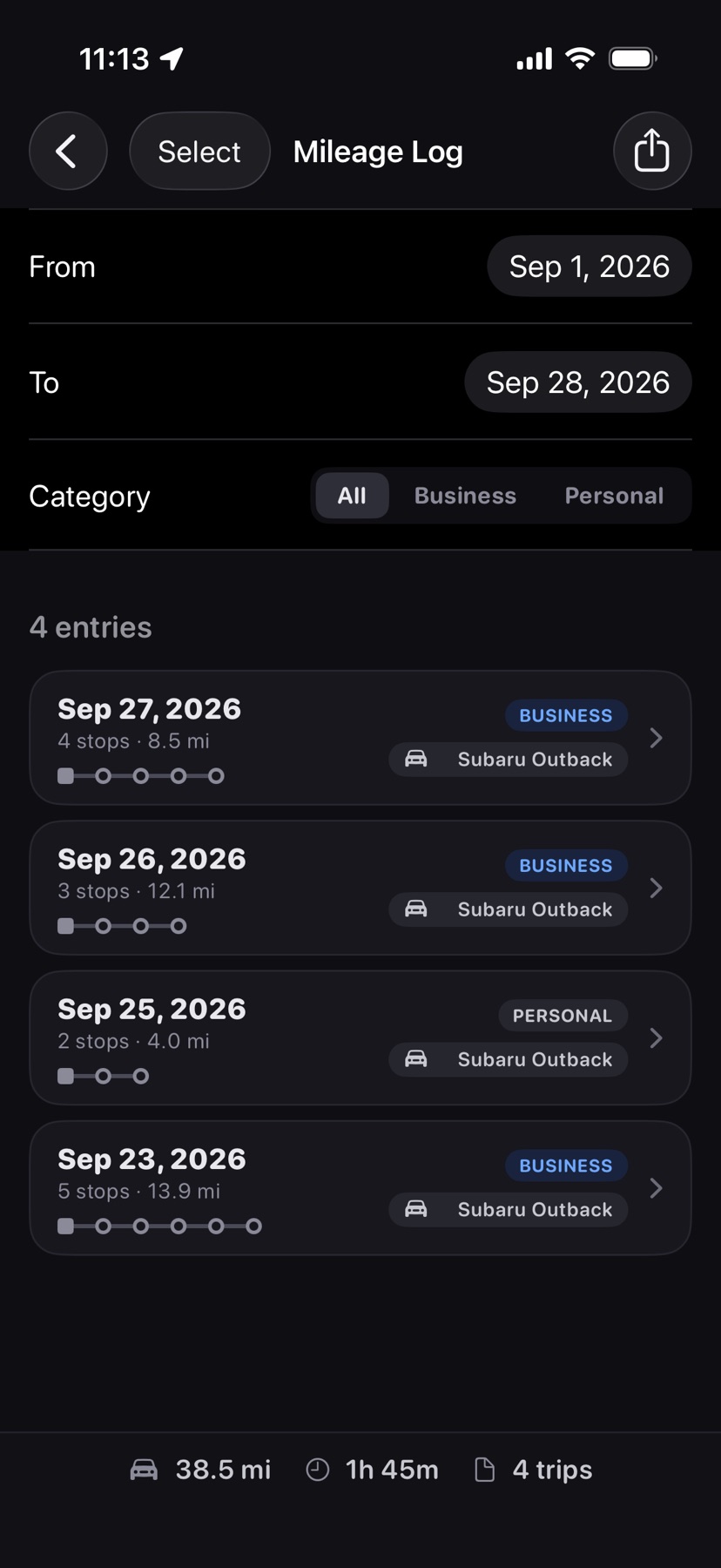
Every day you log, with its trips, miles, category, and vehicle. Open it from Settings → Mileage → Mileage Log.
 1
2
3
4
5
6
1
2
3
4
5
6
- 1
- From and To
- The dates to show. They start at the first of this month and today.
- 2
- Category
- Shows All days, or one category. The defaults are Business and Personal; add your own under Settings → Mileage → Trip Categories.
- 3
- Logged day
- Date, stops, and miles. Tap the category pill to change it; a logged day starts as Business. Tap the vehicle pill to assign one of your vehicles. Tap the card to open the day. Swipe left for Reopen Day, which deletes the entry so you can log the day again.
- 4
- Totals
- Miles, drive time, and trips for the days shown.
- 5
- Export
- Opens Export Mileage with the same date and category filters, then shares a CSV file. Columns: Date, From, To, Miles, Category, Vehicle, Business Purpose, and Drive Time, with a total row. Business Purpose is left blank for you to fill in.
- 6
- Select
- Tick several days, then tap Set Category to change them all at once. Done ends selection.
 7
8
9
10
7
8
9
10
- 7
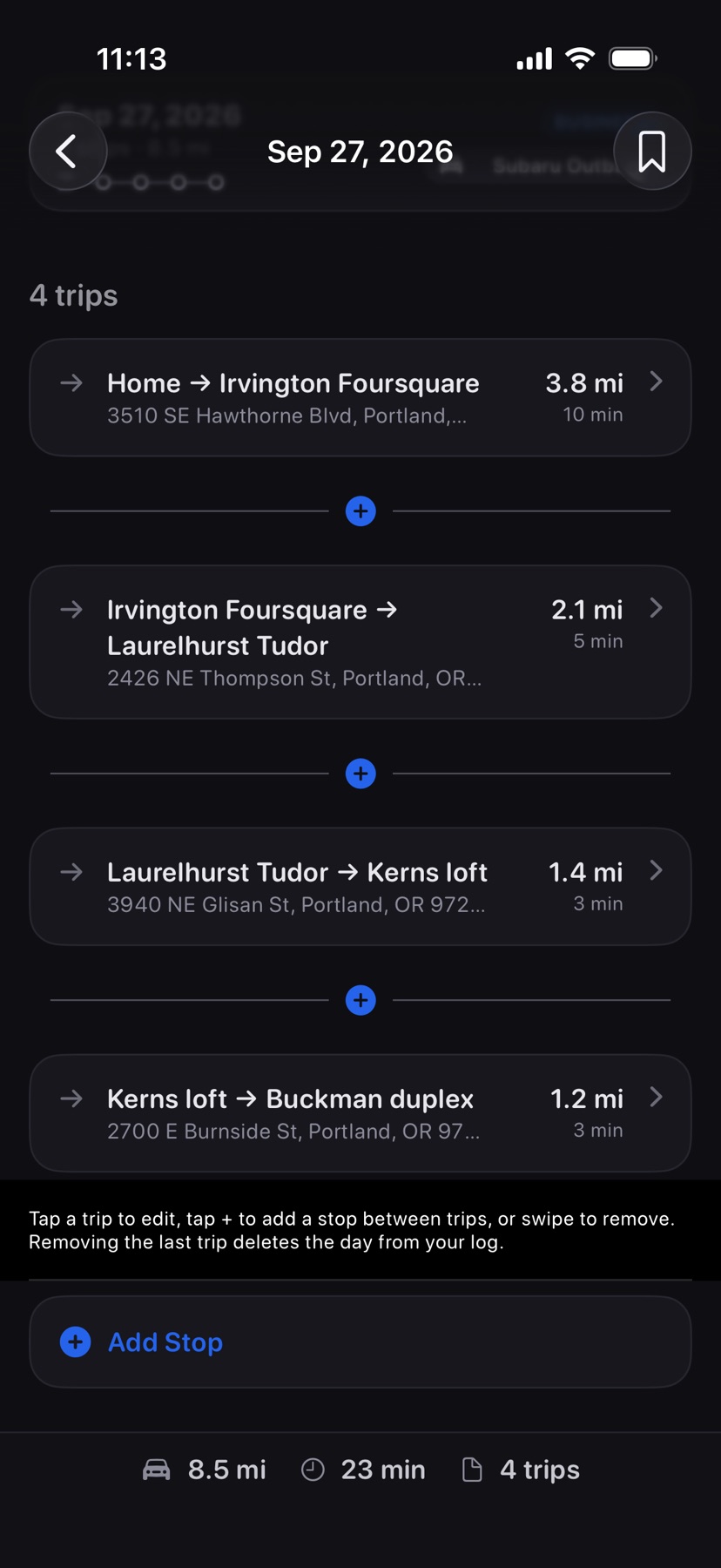
- Trip
- One drive, from one stop to the next, with its miles and time. Tap to edit it. Swipe left to delete it; deleting the last trip removes the day from your log.
- 8
- Insert a stop
- The plus between two trips adds a stop there.
- 9
- Add Stop
- Adds a stop at the end of the day.
A day gets logged three ways. Log Trip sits in the daily summary under your list. Auto-log trips in Settings logs each day's route some time after your last stop ends, or the next time you open HopStop if iOS held off. Add Manually appears when the log shows no days. With a primary address set, the first trip starts from it. Vehicles you add under Settings → Mileage → Vehicles appear in the CSV. Available with Pro. See also Log miles for taxes.