
Saved routes
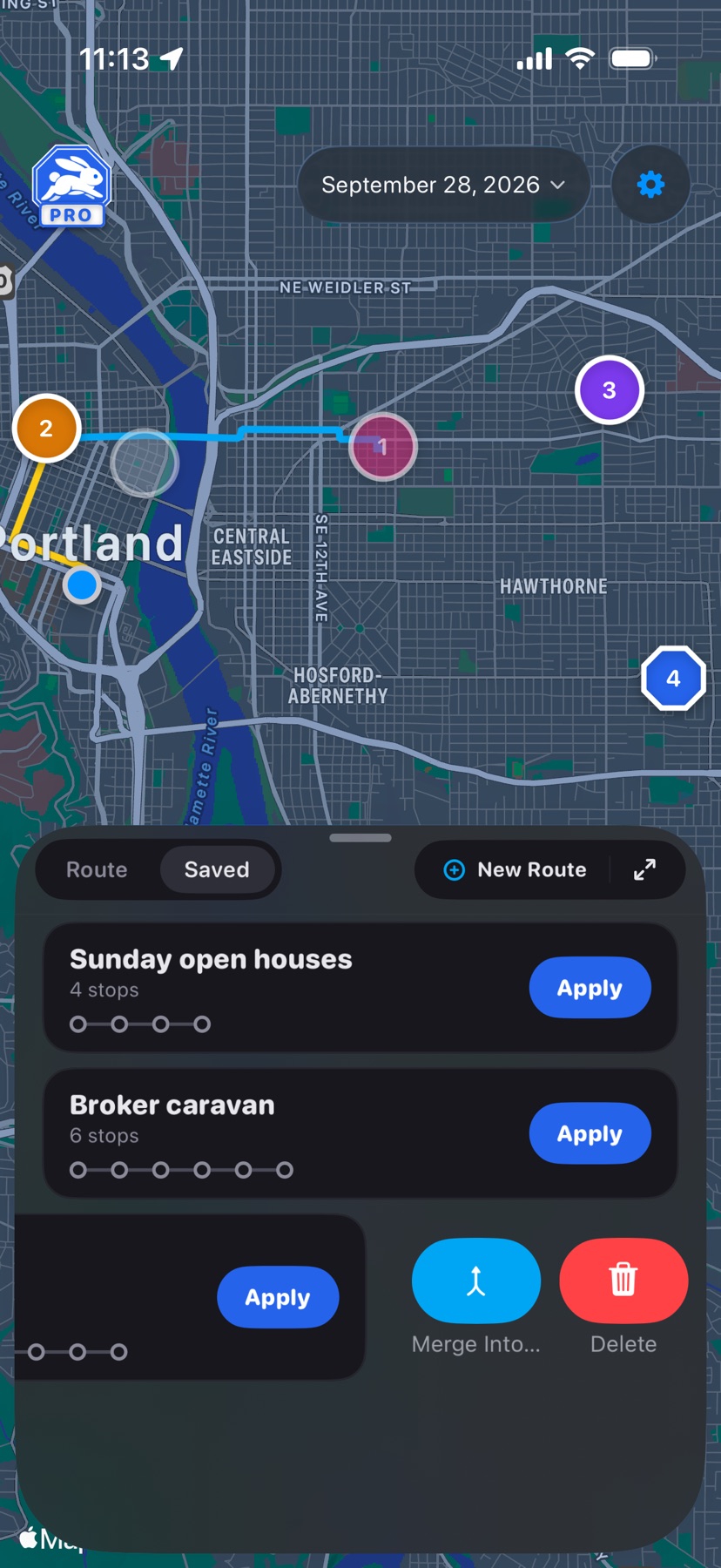
Named lists of stops you can add to any day. They live on the Saved tab of the event sheet.
 1
2
3
4
5
1
2
3
4
5
- 1
- Saved
- Your routes, with each one's stop count. To save the day on screen, tap Save Route under the Route list and give it a name.
- 2
- New Route
- Builds a route from scratch in the editor, shown below.
- 3
- Route
- Tap to open it in the editor. Swipe right for Edit and Share.
- 4
- Apply
- Adds the route's stops to the end of the day on screen and switches to the Route tab. To apply it to another day, change the date first.
- 5
- Delete and Merge Into…
- Swipe left. Merge Into… appears once you have two routes; it moves every stop into the route you pick and deletes this one, after asking.
 6
7
8
6
7
8
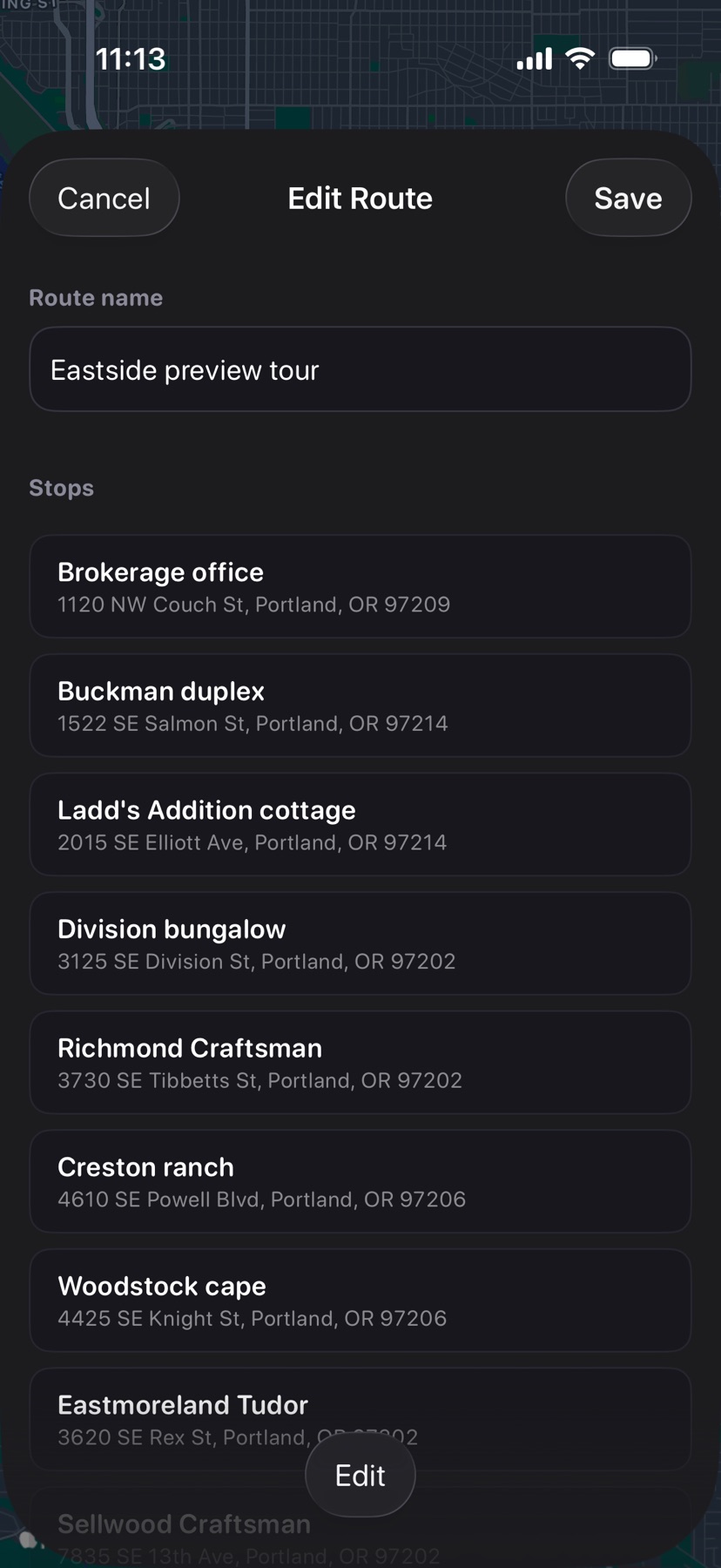
- 6
- Route name
- Required. The screen title reads New Route or Edit Route.
- 7
- Stops
- Swipe left on a stop to delete it. Tap Edit at the bottom of the screen to drag stops into a new order.
- 8
- Save
- Greyed out until the route has a name.
 9
10
11
9
10
11
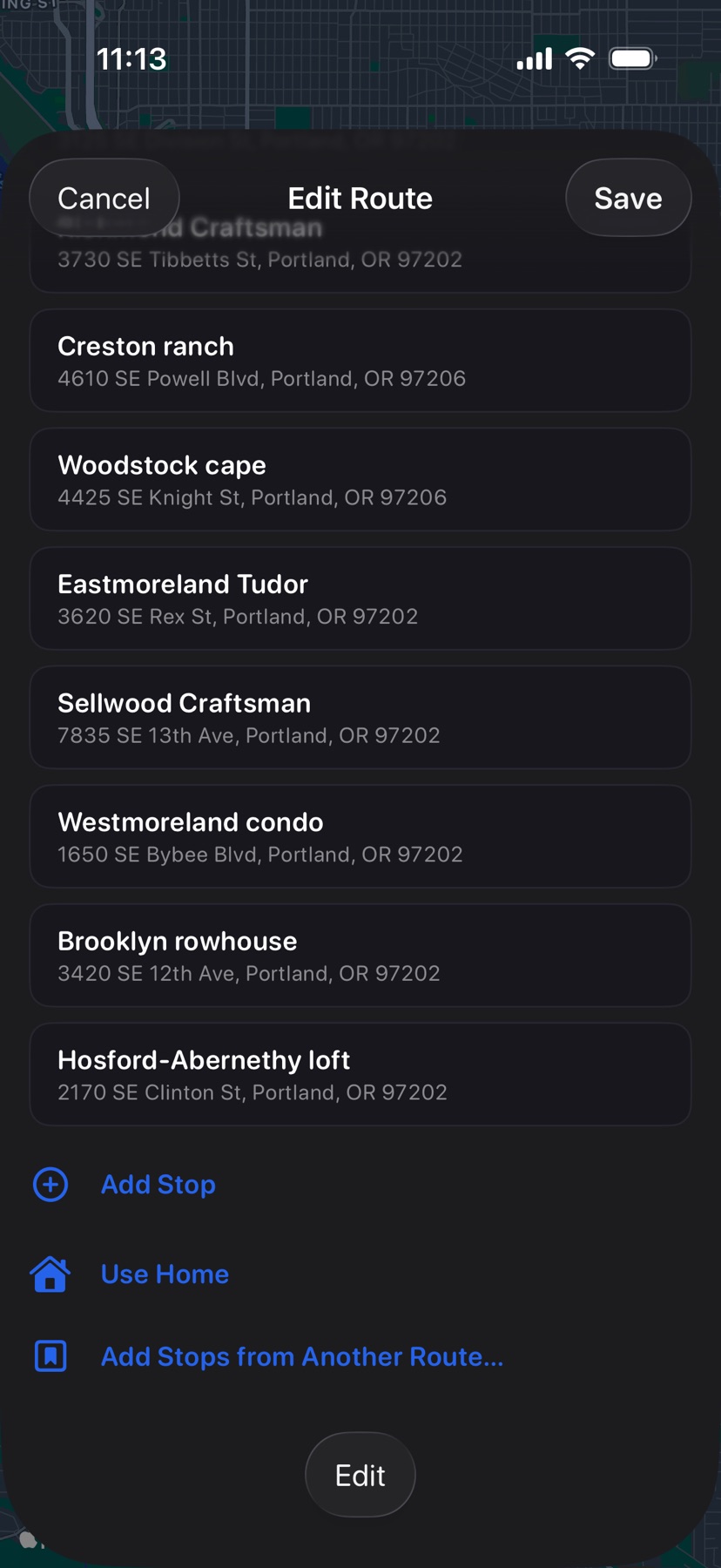
- 9
- Add Stop
- Opens a place search inside the editor.
- 10
- Use Home
- Adds your primary address. It appears once you set one in Settings.
- 11
- Add Stops from Another Route…
- Copies the stops of a route you pick into this one.
A day in your Mileage Log can become a route too, with Save as Route. Available with Pro. See also Reuse a weekly route.