
Reuse a weekly route
Friday showings, Monday rounds: some days repeat stop for stop. Save the stops once and add them to any day with one tap. Available with Pro.
- 1
Save the day as a route
Drag the sheet up to half height and tap Save Route at the bottom. Give it a name and tap Save. HopStop keeps each included stop's name and address, but not its time.
- 2
Open your saved routes
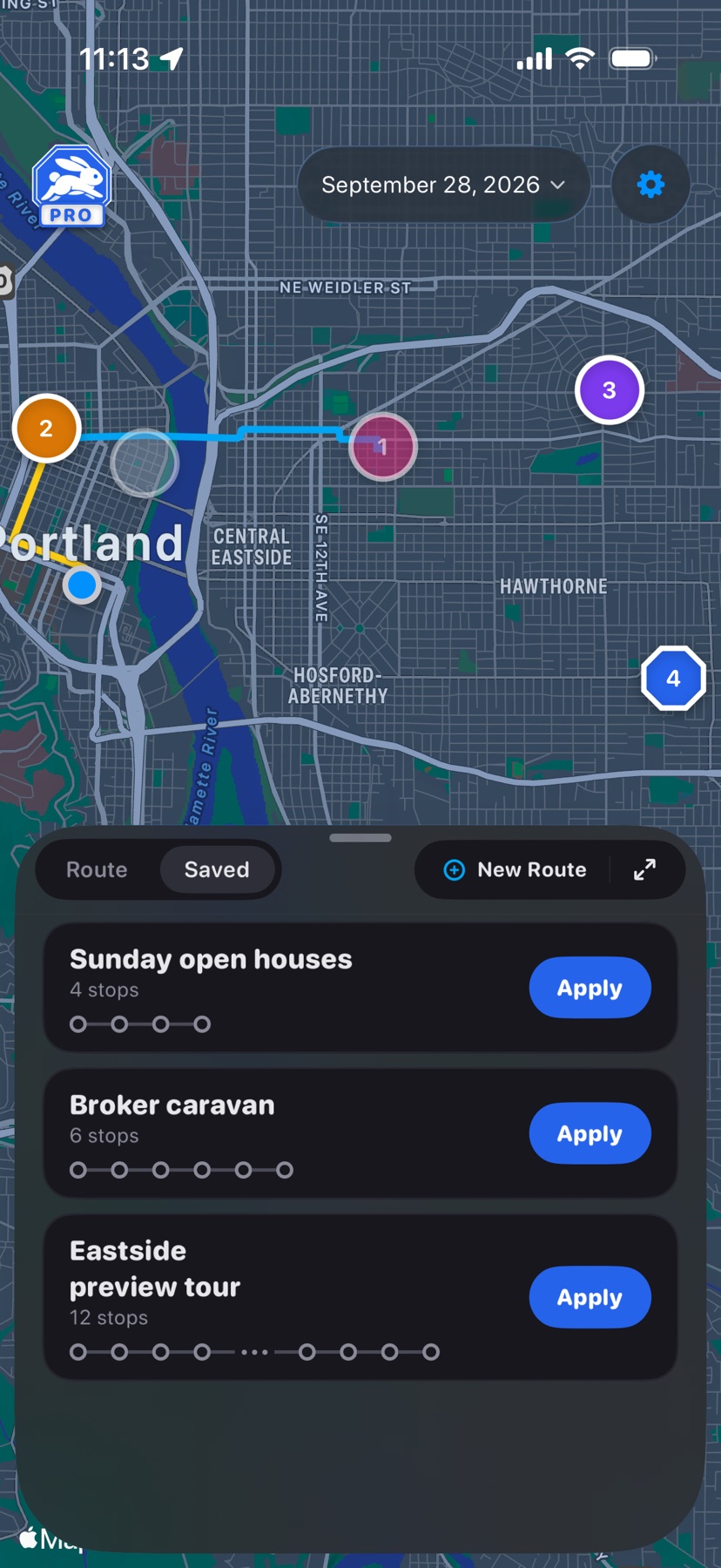
On the day you want the stops, tap Saved at the top of the sheet. To set up a future day, open that day first.
- 3
Tap Apply
Tap Apply on the route. Its stops join the end of the day's list, and the sheet switches back to Route.
- 4
Set times and order
Applied stops arrive without times. Tap Set Time on each one that needs a departure alert, then press and hold a stop to drag it into place. Set times first: a stop whose time changes moves to that time's place in the route, even after a drag.
Keep the route current
Tap a saved route to edit it. Rename it, add stops with Add Stop or Use Home, drag to reorder or swipe left to remove a stop, then tap Save.
Swipe left on a saved route for Delete or Merge Into…. New Route at the top of the sheet builds one from scratch.
Shown in HopStop 1.0.69 or later.