
Plan another day
Look ahead to tomorrow or next Tuesday and set up the route before the day comes. Available with Pro.
- 1
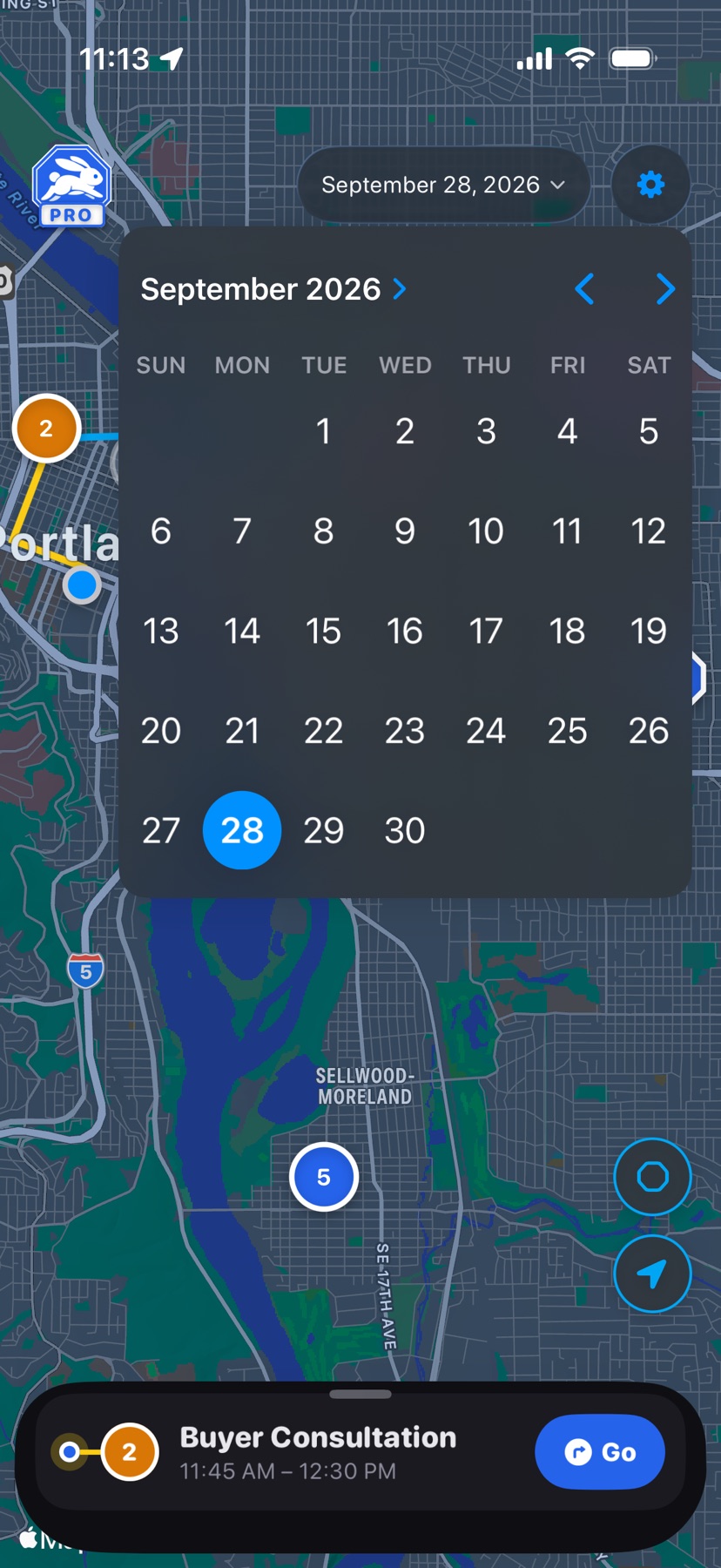
Tap the date
Tap the date at the top of the map and pick a day on the calendar. The map and list load that day, and the date turns amber while you're away from today.
- 2
Plan it like today
Leave out stops, change the order, add stops, edit events, and apply saved routes as you would today. HopStop keeps your changes with that day.
Departure alerts, the widget, Siri, and auto-log follow today only. They ignore the day you're planning until it becomes today.
Come back to today
Tap the date again and pick today. The date loses its amber color. Your location shows on the map only on today, so it comes back too.
Shown in HopStop 1.0.69 or later.