
Map and date
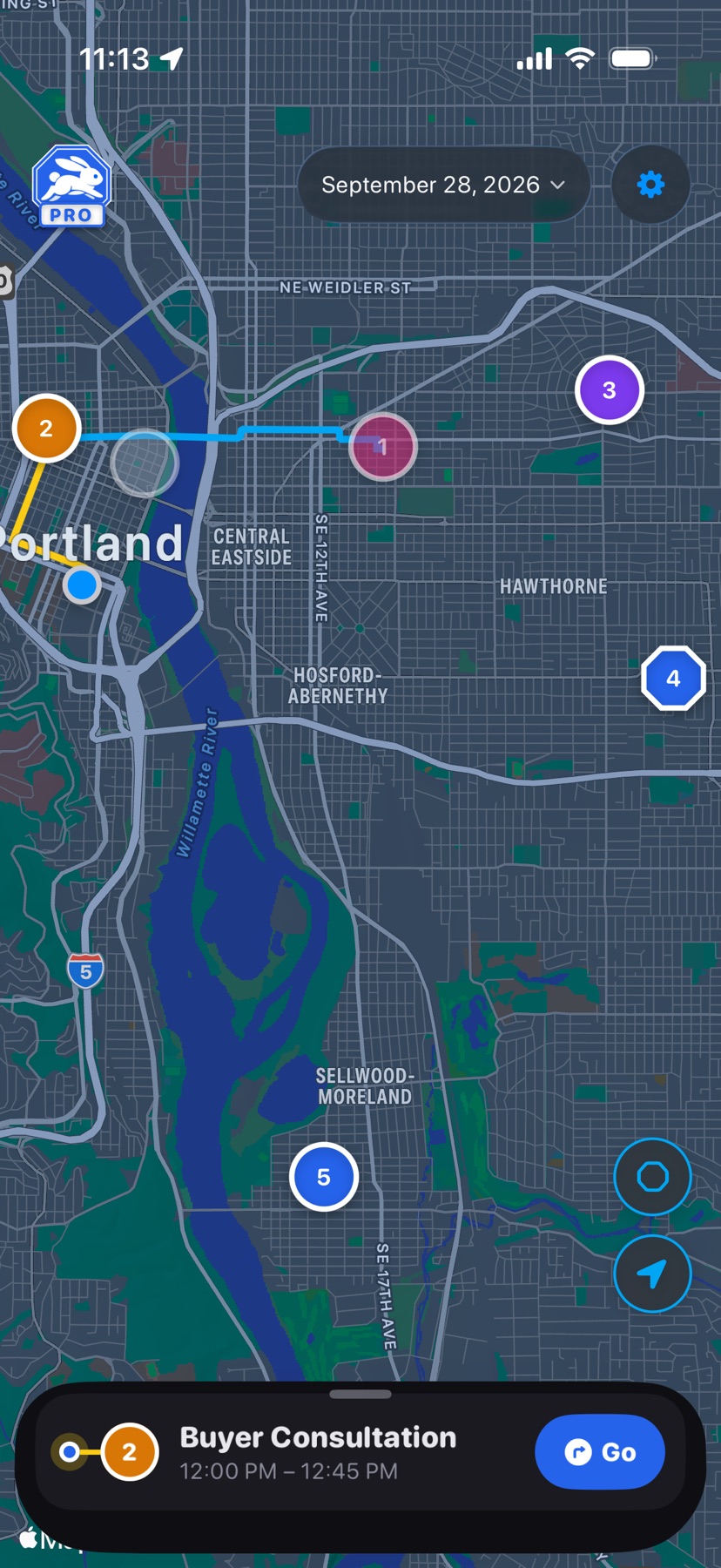
The map fills the screen behind the event sheet. The header floats over its top edge, and two map buttons sit above the sheet at peek height.
 1
2
3
4
5
6
1
2
3
4
5
6
- 1
- HopStop logo
- Fits the whole route on screen. It also clears the selected pin and drops the sheet to peek height. With Pro, a PRO plate sits under it.
- 2
- DatePro
- The day on the map. Tap it to pick another day from a calendar. The date turns amber while you view a day other than today. Departure alerts, the widget, Siri, and auto-log always follow today. Available with Pro.
- 4
- Stop pins
- Numbered in route order. An appointment whose title names a showing, listing, open house, walkthrough, or consultation takes that type's color; others take their calendar's color. Stops you add yourself are blue octagons. Tap a pin to zoom in on it; the list scrolls to the same stop. An excluded stop shows as a faded grey pin with no number.
- 5
- Route line
- Blue lines follow the roads between your stops. A yellow line runs from you to the stop you're heading for: the selected stop, or else the next upcoming one. Choose Full, Next leg, or Off under Settings → Map & Route → Show route; Next leg is the default.
- 6
- Map buttons
- The octagon adds a stop right after the stop shown in the peek card. The location button zooms in on you; tap it again to show the whole route. The location button appears only when Show My Location is on and you're viewing today. Both buttons hide when the sheet is above peek height.
The yellow line and the location button need Settings → Location & Alerts → Show My Location. See also Event list and Plan another day.