Settings
Every row, top to bottom, with what it starts as. Tap the gear at the top right of the map to open Settings.
 1
2
3
4
5
1
2
3
4
5
- 1
- Accounts & Calendars
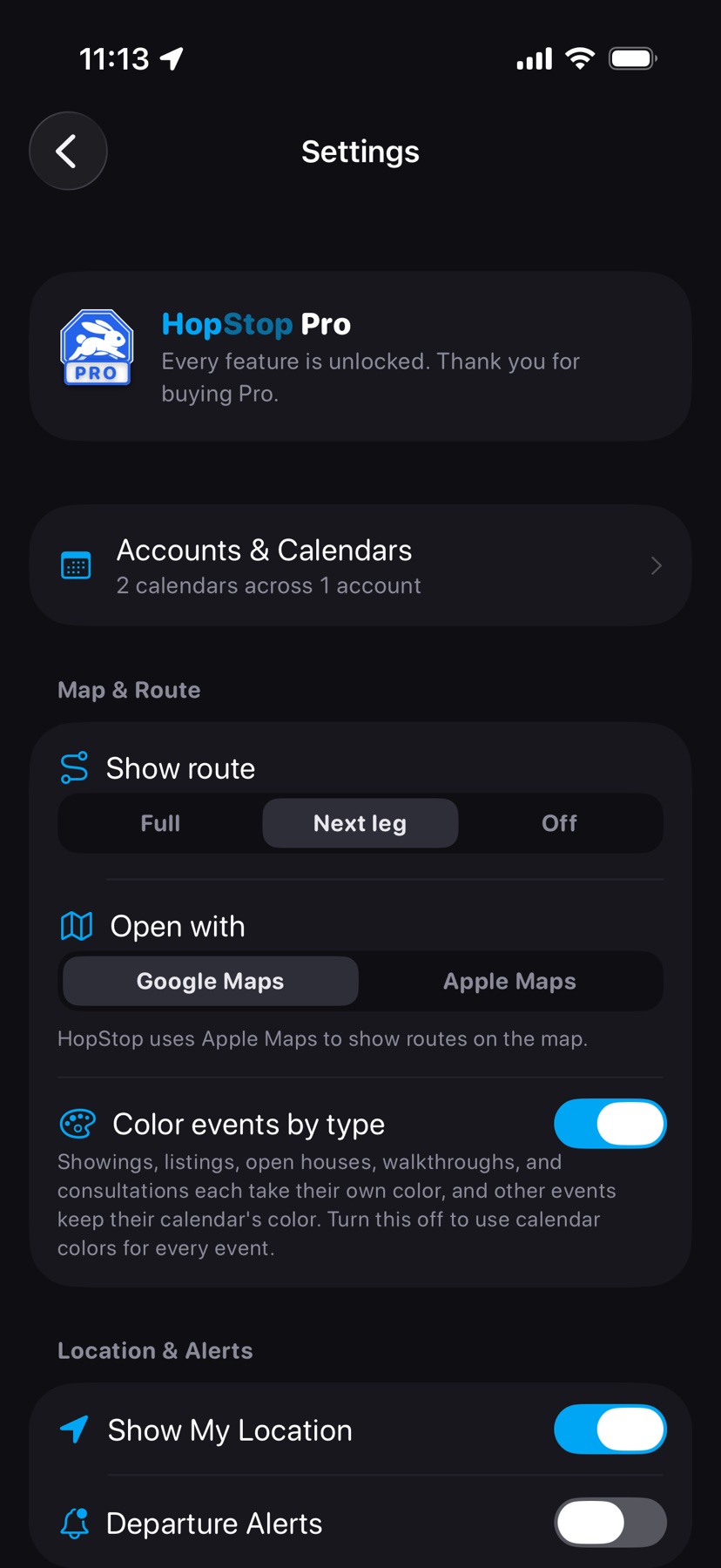
- Shows how many calendars and accounts you use. Inside: your Google accounts with their calendars, Enable Apple Calendar, Select All, and Add Google Account. Tick the calendars to map. An account whose sign-in expired shows Reconnect; swipe left on an account to remove it. Your first Google account is free, and you can add more. Available with Pro.Pro
- 2
- Show route Next leg
- Under Map & Route. Full draws every leg of the day, Next leg only the one coming up, and Off none.
- 3
- Open with Google Maps
- Google Maps or Apple Maps: the app that opens when you tap Go, Navigate, or a departure alert. The map inside HopStop always uses Apple Maps.
- 4
- Color events by type On
- Under Map & Route. Showings, listings, open houses, walkthroughs, and consultations each take their own color, and other events keep their calendar's color. Turn it off to use calendar colors for every event. Renaming an event in HopStop recolors it by its new title.
- 5
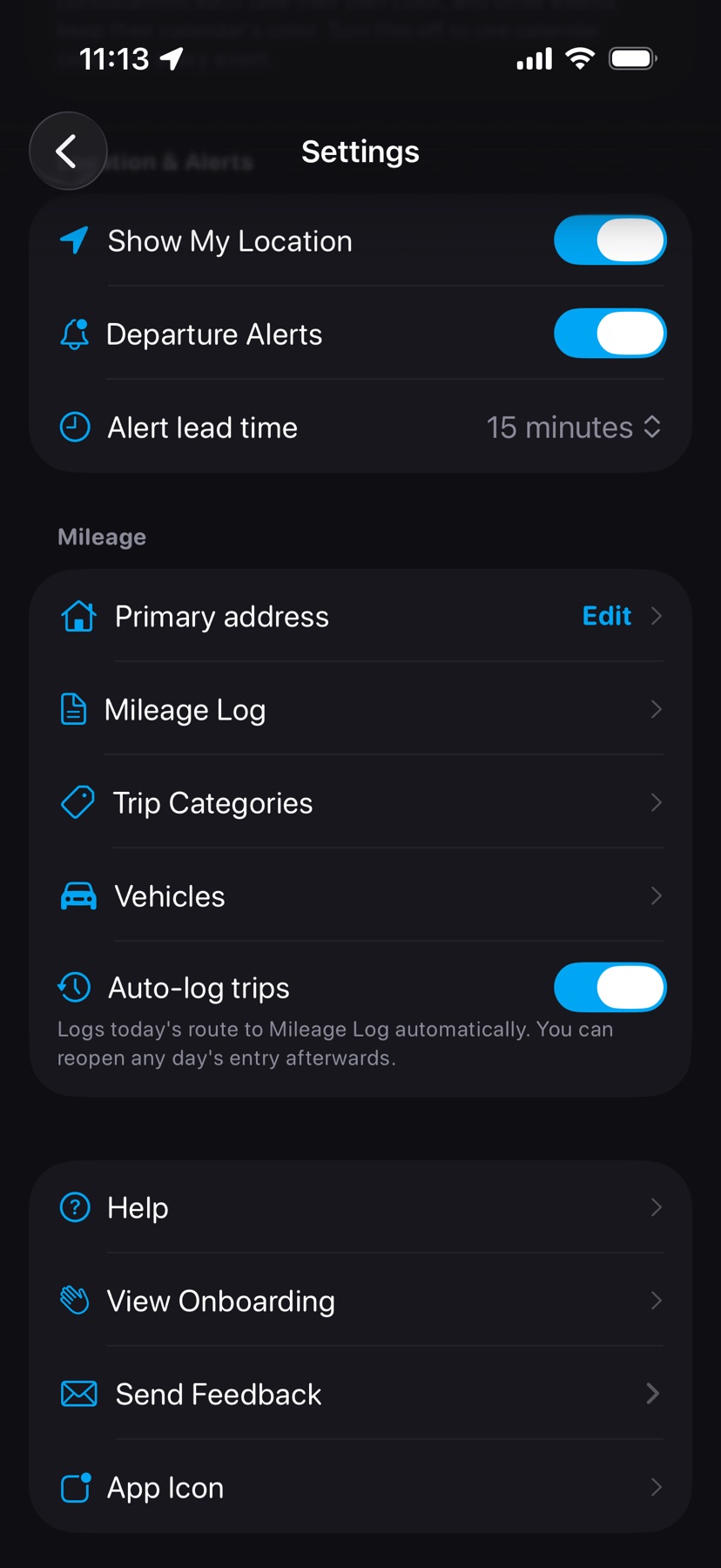
- Show My Location Off
- Under Location & Alerts. Shows you on the map, draws the yellow line to your next stop, and adds a drive time from you above the first stop.
 6
7
8
9
10
6
7
8
9
10
- 6
- Departure Alerts Off
- Notifies you when it's time to leave for each of today's stops. When it's on, Alert lead time appears: 5, 10, 15, 20, or 30 minutes, starting at 15. A row with Open Settings appears if notification or location permission is missing.
- 7
- Primary address Not set
- Under Mileage. Your home or office. It becomes the Home choice in Add Stop and the starting point of each logged day's first trip. Search for it or tap Use My Location.
- 9
- Trip Categories and VehiclesPro
- Add, rename, and delete the names you tag logged days with. Business and Personal are the default categories and stay put. You start with no vehicles.
- 10
- Auto-log trips OnPro
- Logs each day's route to your Mileage Log some time after your last stop ends. If iOS holds off, it logs the day the next time you open HopStop. The row appears only with Pro.
 11
12
13
11
12
13
- 11
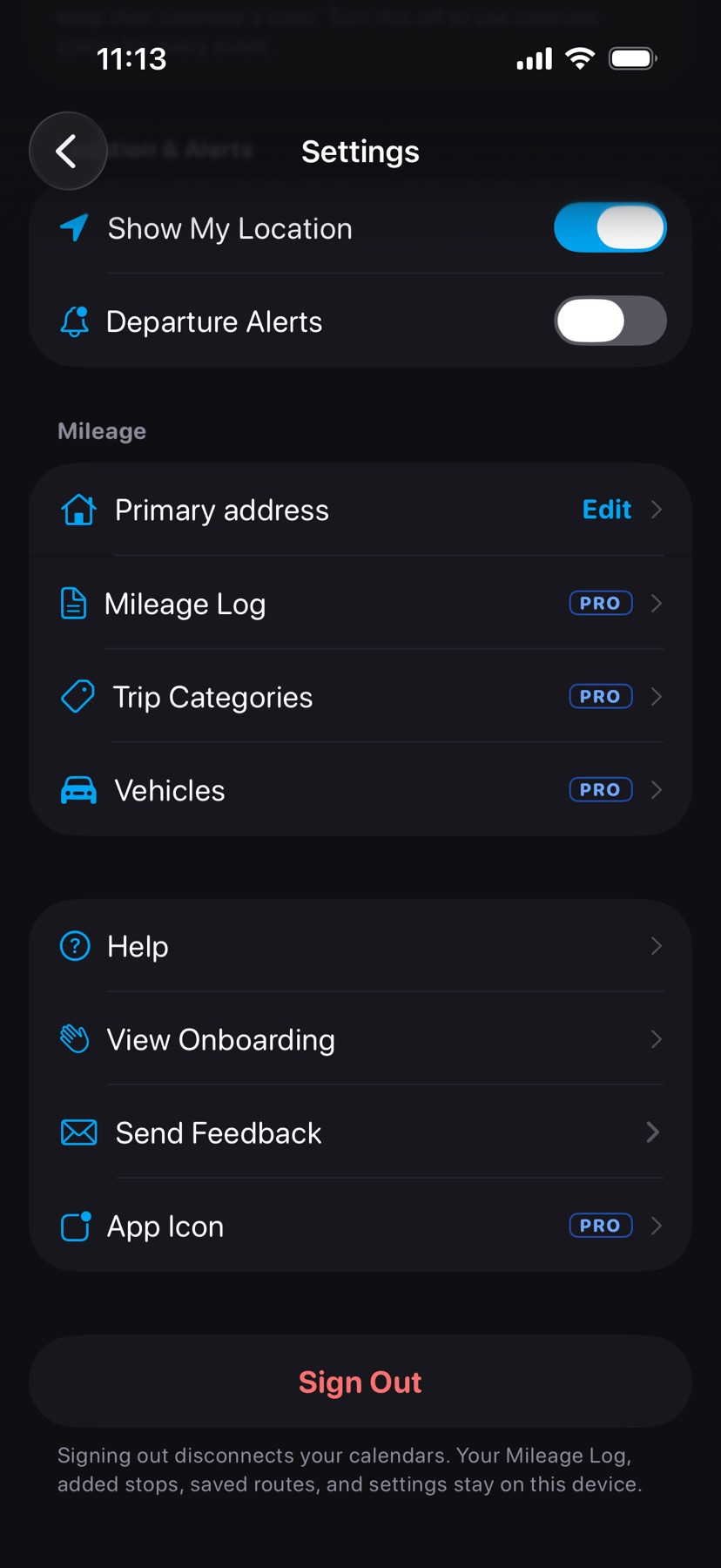
- Help, View Onboarding, and Send Feedback
- Help opens these help pages inside the app. View Onboarding replays the welcome screens. Send Feedback sends us a message from the app.
- 12
- Sign Out
- Disconnects your calendars and returns to the sign-in screen, without asking first. Your Mileage Log, added stops, saved routes, and settings stay on this device.
- 13
- App IconPro
- Sets the HopStop icon on your home screen: Default, Spring, Summer, Autumn, or Winter. Available with Pro.
Restore Purchases lives on the Pro upgrade screen, which opens when you tap any Pro row. See also Connect your calendars and My departure alert didn't arrive.