Full event list
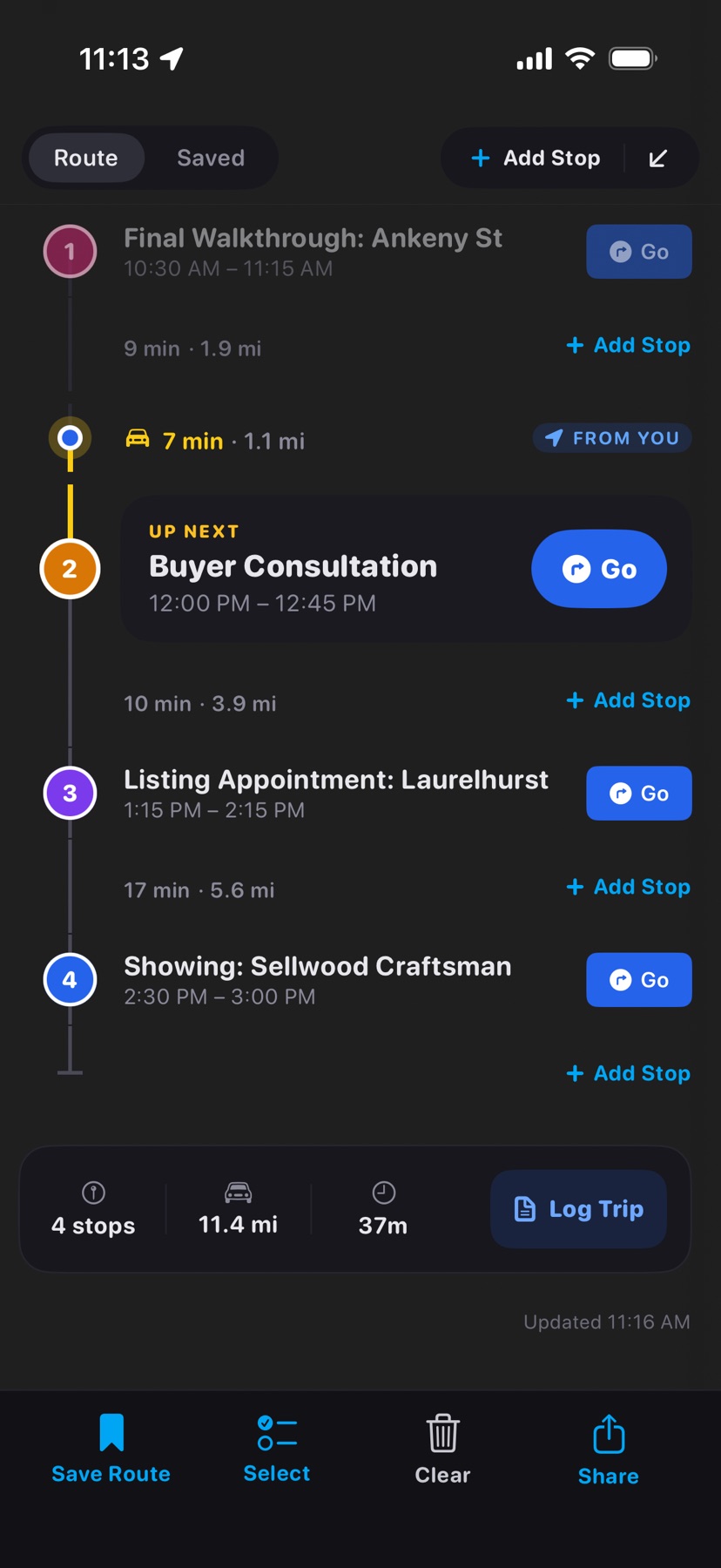
Every stop on one screen. Tap the expand button beside Add Stop, or drag the event sheet past half height.
 1
2
3
4
5
6
1
2
3
4
5
6
- 2
- Add Stop
- Opens Add Stop and adds the new stop at the end of the day. On the Saved tab this button reads New Route.
- 3
- Collapse
- Returns to the map. Swiping down on the tab row does the same.
- 4
- Stop cards
- The same cards, swipes, and drive times as the event list. Pull down to refresh from your calendars; the time of the last refresh shows under the last stop.
- 5
- Daily summaryPro
- Stops, miles, and drive time for the day, shown when the route has two or more stops. Log Trip saves the day to your Mileage Log and then reads Logged. Available with Pro.
- 6
- Select
- Appears in the tool row here, and only when the day has two or more active stops. It starts bulk selection, shown below.
 7
8
9
10
7
8
9
10
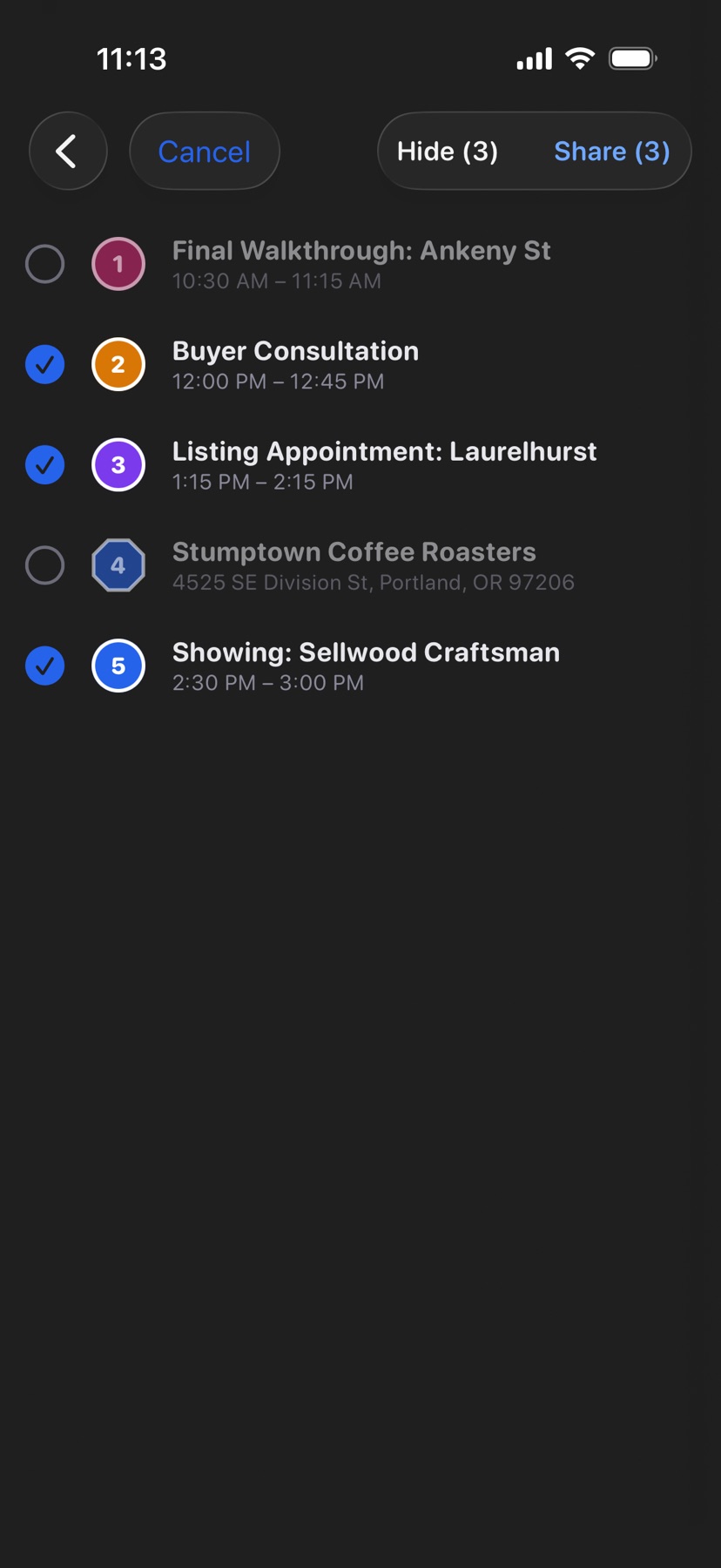
- 7
- Check circles
- Every active stop starts ticked. Tap a stop to untick it.
- 8
- Hide or Remove
- Reads Hide when every ticked stop comes from your calendar, and Remove when any stop you added is ticked. Calendar events are excluded from the route and can be included again. Stops you added are deleted for good. HopStop asks before it does either.
- 9
- Share
- Sends only the ticked stops as text, each with a Google Maps link.
- 10
- Cancel
- Leaves selection without changing anything.
See also Event list and Share your route.